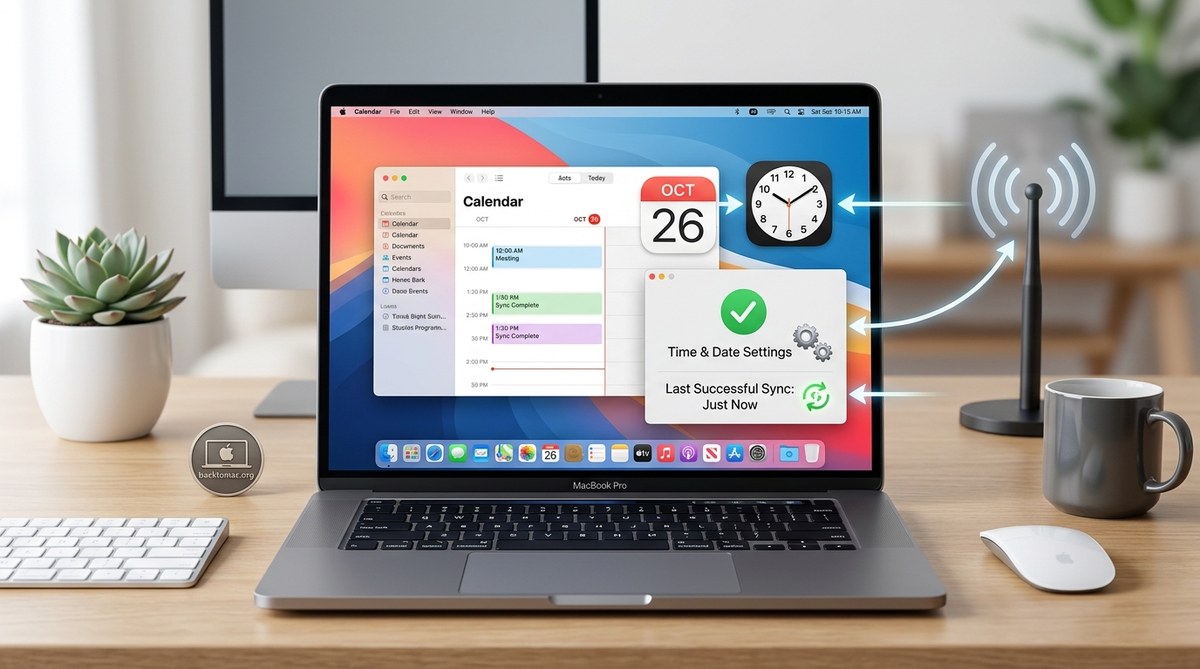
Time matters more than you might think in macOS apps. When clocks drift or time sources go awry, timestamps can become unreliable, logs can look inconsistent, and security checks that rely on precise timing can fail. If your macOS app handles Unix timestamps, schedules tasks, verifies authentication tokens, or coordinates events across services, you need solid time synchronization practices. This guide is designed for Mac developers who want practical, battle tested steps to diagnose and fix time sync issues in macOS apps, with a focus on real world debugging, code level fixes, and best practices for reliable timing.
Understanding time sync on macOS
Time synchronization on macOS is driven by a few key components and decisions. Understanding how they work helps you identify where things can go wrong in an app.
- The system clock and the timed daemon: macOS uses a time service known as timed to keep the system clock accurate. Timed communicates with network time servers and applies corrections to the system clock at regular intervals.
- NTP servers: The default and recommended sources are network time protocol servers such as time.apple.com or pool.ntp.org. The exact server configuration can be automatic or manual depending on user settings and profile management.
- Automatic vs manual time: Users can set Date and Time to update automatically or they can configure a manual time. When automatic updates are off, the clock may drift without the system actively correcting it.
- Time zone vs actual time: Time zone changes adjust how a given instant is displayed but do not change the underlying epoch time. Apps should separate the concept of the absolute time (UTC) from the user facing representation (local time with a timezone).
- Application scope: Time in macOS is global to the system, but apps often rely on their own clocks for internal timing (for example high resolution time sources) in addition to the system clock. It is important to distinguish between the macOS wall clock and programmatic clocks used within your code.
Key takeaways for developers:
– Rely on the system clock for most time sensitive decisions and use time zone APIs to present local time.
– If your app performs long running tasks, consider how clock changes will affect progress indicators and scheduled work.
– Remember that distributed systems and services may use their own clocks and time sources, so clock skew between client and server can still occur even when the local system clock is accurate.
Common symptoms you might see in apps
Certain patterns hint at time synchronization problems. Look for these in logs, UI, or behavior:
- Off by a few seconds or more: Timestamps in logs or data appear inconsistent across components.
- Fluctuating time shown in the UI: The displayed time jumps or snaps backward in response to automatic corrections.
- Authentication or token expiry mismatches: Tokens validate only sometimes because certificate validity or nonce checks depend on accurate time.
- Scheduling drift: Background tasks or reminders fire at incorrect times or not at all.
- Inconsistent time zone handling: The same instant is shown differently in different parts of the app or across processes.
- Multiscreen or remote sessions reporting different times: When an app runs across environments or displays, there is noticeable drift.
- Debugging difficulties: Tests fail intermittently with time dependent assertions.
If you observe any of these, start by verifying the system time and the NTP configuration before diving into application logic.
Prerequisites for diagnosing time issues
Before diving into fixes, collect the right data. This makes troubleshooting faster and reduces guesswork.
- Check the system clock: Confirm the current time, date, and time zone shown in macOS.
- Verify automatic time setting: Ensure Date and Time are set to update automatically when possible.
- Inspect the timed service: Confirm that the timed daemon is running and applying corrections.
- Review network access: Ensure the host can reach NTP servers and is not blocked by a firewall.
- Look at logs: Use macOS Console and system logs to view clock adjustments and related messages.
- Consider the environment: If you are running within a virtual machine or container, check how time is exposed to the guest or container.
- Examine your app’s time usage: Distinguish between system time and application level timers (for example, high resolution clocks).
Step by step troubleshooting guide
Follow these steps in order to pinpoint and fix time synchronization issues.
1) Check and set date time automatically
- Open System Settings (or System Preferences) > General > Date & Time.
- Verify that Set date and time automatically is turned on and that the server is reachable.
- If automatic time is enabled but issues persist, test by temporarily switching to a manual setting, note the discrepancy, and revert to automatic after testing.
- In a deployment scenario, verify that device profiles enforce automatic time settings where appropriate.
2) Verify network reachability to NTP servers
- Confirm that time.apple.com or your configured NTP servers are reachable from the host.
- Run a quick diagnostic:
- Ping the NTP server (if allowed by your network policy).
- Check DNS resolution for the time server.
- If DNS or network policies block NTP, you will see delayed or no adjustments. Work with network admins to allow time synchronization traffic.
3) Examine the timed daemon configuration and logs
- Timed is the macOS background service that handles time adjustments. Check its status:
- On modern macOS versions, use Activity Monitor or launchctl to inspect the timed process.
- Look for recent clock adjustments in system logs. Messages about skew corrections indicate that the clock was drifted and has been corrected.
- If the timed service is disabled or not functioning, re-enable it or reset the device to restore normal operation.
4) Test with command line tools
- Use built in tools to force or simulate time sync to validate behavior:
- sntp time.apple.com
- sntp pool.ntp.org
- Note that macOS may require administrator privileges; in some macOS versions these tools may be deprecated or require additional options.
- Testing helps you determine whether the problem is the system time source or the application logic.
5) Inspect logs for clock drift or anomalies
- Open Console app and filter for time related messages.
- Look for entries about:
- Time adjustments
- NTP queries and responses
- Calendar or timezone changes
- Errors in the timed service
- Correlate these logs with your app’s internal logs to determine if drift coincides with particular events.
6) Consider timezone and locale issues in your app
- Ensure that your app consistently uses UTC for internal time calculations and only converts to local time for presentation.
- Avoid mixing local time with universal time in calculations.
- For apps that handle multiple time zones, implement clear boundaries between displayed time and stored time.
7) Evaluate application level time sources
- If your app uses its own time sources (for example, a custom timer, a timer based on mach_absolute_time, or a time provider abstraction), verify:
- How the provider handles system time changes
- Whether the provider is susceptible to clock adjustments
- If your code requires monotonic time and how you handle time jumps
- When possible, derive scheduling decisions from the system clock and use a monotonic timer for elapsed time calculations only.
8) For distributed systems, bound clock skew
- If your app communicates with remote services, ensure that clients and servers have bounded clock skew.
- Implement time tolerance checks on the server side, discourage connections with large time differences.
- Use signed tokens with clock skew allowances and short lifetimes to minimize risk when clocks drift.
9) Reproduce reliably
- Create a test environment that can reproduce clock drift:
- Temporarily adjust the system time forward or backward (carefully and with permissions).
- Validate how the app behaves during and after correction.
- Confirm that logs show correct timestamps after drift and correction.
How to fix in code
Code level changes can prevent time issues from impacting your app and make it more robust to clock changes.
- Prefer system time for business logic
- Use standard APIs to fetch current time:
- In Swift: Date(), DateFormatter for local time zones
- In Objective-C: [NSDate date]
- Use time zone aware formatting
- Always display time using a date formatter configured with the user’s time zone or with a fixed UTC reference when storing times
- Use monotonic clocks for elapsed time
- If you need to measure durations, rely on monotonic clocks such as mach_absolute_time or ProcessInfo.processInfo.systemUptime
- Do not mix monotonic and wall clock values without clear boundaries
- Normalize timestamps to a standard epoch
- Store times in UTC epoch seconds or milliseconds
- Convert to local time only for user interfaces
- Handle time adjustments gracefully
- If the system clock changes while your app is running, decide how to respond:
- Pause timers that rely on wall clock time
- Recalculate scheduled events after the adjustment
- Make network time a layer
- If your app relies on remote time (for example for token validation), consider an internal time provider that can be overridden in tests
- Cache remote time with a small tolerance window and a fallback to system time
- Be mindful of daylight saving time
- DST transitions can cause apparent time changes in UI if not handled carefully
- Use locale aware formatting and guaranteed time zone information
- Security implications
- TLS certificates have validity windows that depend on correct time
- If your app validates tokens or certificates, use reasonable clock skew allowances and fail securely if time cannot be determined
Testing and validation
A thorough testing plan helps ensure time issues are caught early.
- Manual testing
- Change the system time and observe how the app reacts
- Verify that logs reflect correct times after a clock adjustment
- Validate that scheduled tasks trigger as expected
- Automated tests
- Write tests that mock time sources and simulate clock drift
- Test edge cases around DST changes
- Include tests that verify handling of time zone conversions
- End to end testing
- Check that client and server time remain in sync during network interruptions
- Validate that tokens and credentials remain valid within allowed clock skew windows
- Performance tests
- Ensure time fetches do not introduce noticeable latency in tight loops
- Measure the cost of time conversions in a hot path
Common pitfalls and misunderstandings
- Automatic time is not a guarantee of perfect accuracy: even with auto setting, network issues or server problems can cause drift until repaired.
- Per process timers are not synchronized across processes if you rely on different time sources; align them on a single canonical source.
- Local time changes do not change the underlying instant. When presenting times, convert all values to UTC internally to minimize confusion.
- Virtualization and containers can influence time perception. Some environments may not propagate host time changes to the guest consistently.
- High resolution timers can help with precise UI animations or performance metrics but do not replace the need for accurate wall clock time for scheduling and validation.
Best practices for macOS apps
- Align with Apple guidelines for time handling
- Use Foundation Date, TimeZone, and Calendar APIs consistently
- Prefer UTC for storage and business logic, convert for display
- Make time an explicit dependency
- Abstract time sources in your architecture so you can swap them in tests or when you need to simulate drift
- Prepare for offline and intermittent network conditions
- If your app relies on remote time, implement a robust fallback strategy with clear user messaging
- Keep timing sensitive components isolated
- Isolate log time stamps from display timers to avoid cross contamination
- Focus on security
- Validating certificates, tokens, and time-based access requires careful handling of clock skew and grace periods
- Documentation and observability
- Document time handling decisions in your developer docs
- Add observability around time fetches and clock changes so you can detect anomalies quickly
Resources and references
- Apple documentation on time settings and date management
- Understanding how to work with dates, times, and time zones in macOS and iOS
- Best practices for dealing with time and date in Swift
- Timed daemon and NTP concepts
- How macOS keeps time and what to expect during time corrections
- Community resources and troubleshooting discussions
- Practical experiences with time sync in macOS environments
- Common issues and recommended checks
- Testing time dependent code
- Strategies for mocking time sources and simulating clock drift in unit tests
FAQ
- What should I do if the system time is wrong but I cannot change it?
- Check network access to NTP servers, verify timed daemon status, and consider hardware clock issues. If needed, escalate with IT for device level adjustments.
- Can I rely on my own timer for scheduling tasks?
- Use a monotonic timer for elapsed durations and the system clock for wall clock time. Avoid mixing them for critical time-based decisions.
- How should I handle DST changes in a cross platform app?
- Always format local times with the user’s time zone and locale. Do not adjust the logic based on DST; instead rely on the system calendars to compute correct local times.
- If I run macOS apps in VMs or containers, what differences should I expect?
- VMs and containers can drift differently from the host. Ensure the guest time source is synchronized with the host or with an NTP source accessible to the guest.
Conclusion
Time synchronization is a foundational quality attribute for macOS apps that manage time sensitive data, authentication, logging, and scheduling. By understanding how macOS keeps time, methodically diagnosing issues, and applying code level best practices, you can build apps that behave reliably even when clocks behave unpredictably. Start with the system time, verify NTP and the timed daemon, and then reinforce your app with robust time handling patterns that separate storage, display, and calculation concerns. With careful attention to timing, your macOS apps will deliver accurate timestamps, predictable behavior, and a smoother user experience that stands up to real world conditions.
If you want more practical guides like this one, stay tuned to Back to Mac for developer focused troubleshooting and performance content that helps you ship robust macOS software.