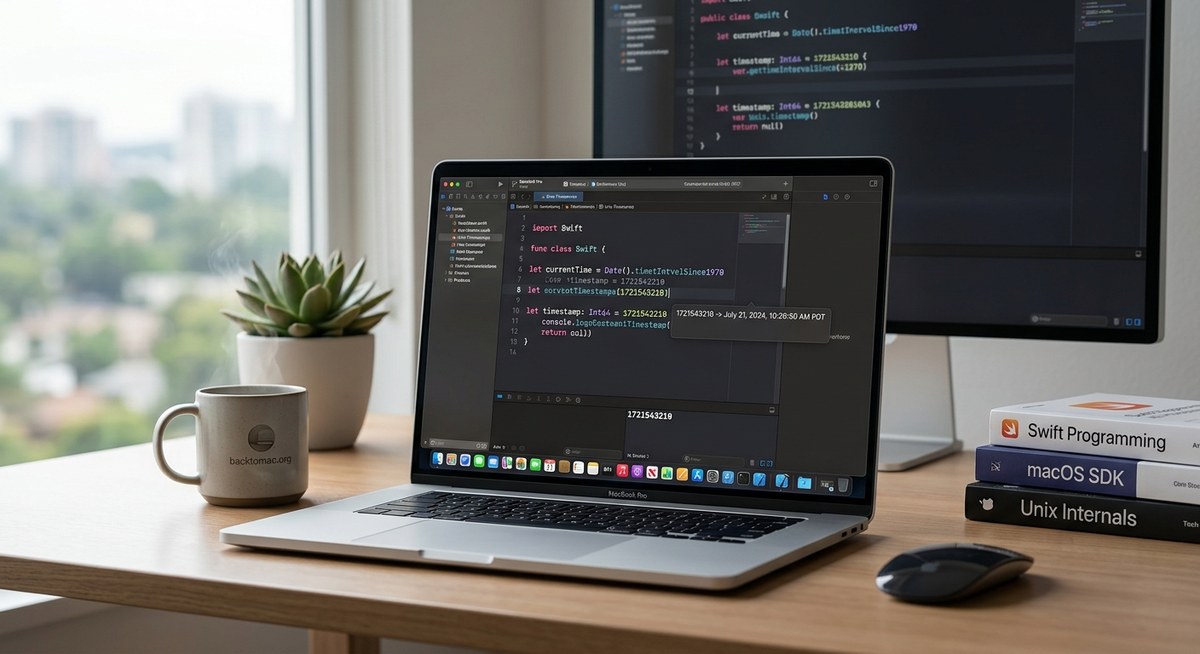
If you work on macOS apps, Unix timestamps are a quiet powerhouse behind many features. They give you a simple, timezone agnostic representation of time that travels well across systems, languages, and APIs. From logging events to syncing data between devices, timestamps help your code stay fast, accurate, and easy to reason about. In this guide from Back to Mac, we explore practical strategies to use Unix timestamps in macOS development. You will learn how to convert between numbers and human readable dates, format timestamps for UI, handle milliseconds versus seconds, and test your time based logic with confidence. We keep things approachable whether you are coding in Swift, scripting in Terminal, or wiring up automation with Shortcuts and App Intents.
What is a Unix timestamp and why it matters
A Unix timestamp is the count of seconds that have elapsed since the epoch at 00:00:00 Coordinated Universal Time (UTC) on January 1, 1970. This representation is simple, unambiguous, and portable. Because it does not depend on time zones or calendar quirks, it is ideal for cross platform data exchange, logging, and scheduling.
Key points to remember about Unix timestamps:
- They are typically expressed as a 64 bit integer. That means they can represent dates far into the future and past with minimal overhead.
- In many APIs you will encounter timestamps in seconds. Some systems for historical reasons use milliseconds since the epoch, which is a common source of bugs if you assume seconds.
- When you convert a timestamp to a date, you must consider the target time zone for presentation. The underlying number remains constant, but the display can vary by region.
Why this matters in macOS development:
- You will often receive timestamps from web APIs, sensors, or log files. A consistent internal representation makes data merging and comparison straightforward.
- Timestamps enable precise scheduling and event ordering, which is critical for performance sensitive apps, music and media apps, and time based utilities.
- For UI and UX, showing human readable dates requires careful formatting to reflect user locale and time zone preferences.
Core workflows for macOS development with Unix timestamps
This section covers the main ways you will encounter and manipulate Unix timestamps in macOS projects. We will look at Swift and Foundation, Terminal and shell usage, Shortcuts and automation, and a quick note on AppleScript.
Swift and Foundation
Swift apps typically rely on Foundation types to work with time. The core types you will use are Date, TimeInterval, and DateFormatter or ISO8601DateFormatter for serialization.
- Creating a Date from a Unix timestamp (seconds)
- Let ts: TimeInterval = 1680000000
-
let date = Date(timeIntervalSince1970: ts)
-
Formatting a Date for display
- let formatter = DateFormatter()
- formatter.dateStyle = .medium
- formatter.timeStyle = .short
- formatter.timeZone = TimeZone.current
-
let string = formatter.string(from: date)
-
Handling timestamps in milliseconds
-
If your source uses milliseconds, convert first:
- let tsMS: TimeInterval = 1680000000123
- let date = Date(timeIntervalSince1970: tsMS / 1000.0)
-
ISO 8601 and network APIs
- let isoFormatter = ISO8601DateFormatter()
- isoFormatter.timeZone = TimeZone(secondsFromGMT: 0)
-
let isoString = isoFormatter.string(from: date)
-
Converting Date back to a timestamp
-
let epochSeconds = date.timeIntervalSince1970
-
Practical tips
- Prefer Date for in memory representations and TimeInterval for arithmetic.
-
Use TimeInterval alias for double precision arithmetic when performing calculations like adding seconds or intervals.
-
Small example in words
- Suppose you fetch a timestamp from a server as 1622548800. You create a date, format it for display, and you can also re serialize it when sending data back. The flow is simple and predictable because you keep both ends aligned on the same base unit.
macOS Terminal and shell
The macOS Terminal provides built in tools to convert between Unix timestamps and human readable dates without writing a line of code.
- Convert a seconds based timestamp to a readable date
- date -r 1680000000 “+%Y-%m-%d %H:%M:%S %Z”
-
This prints the date in your local time zone or a specified zone if you adjust the command.
-
Handle milliseconds
-
If your timestamp is in milliseconds:
- ts=1680000000123
- date -r $((ts / 1000)) “+%Y-%m-%d %H:%M:%S %Z”
-
Convert a date string to a timestamp
- You can use date -j -f to parse a string and output the epoch seconds:
- date -j -f “%Y-%m-%d %H:%M:%S” “2026-05-06 12:34:56” “+%s”
-
The -j flag tells date to not set the system date, which is important for safety.
-
Choosing between BSD date and GNU date
- macOS ships with BSD date, which uses slightly different syntax from GNU date.
-
If you need GNU date features, you can install coreutils via Homebrew and call gdate instead:
- gdate -d “2026-05-06 12:34:56” “+%s”
-
Practical shell workflows
- For quick one liners, shell users often combine date with printf for formatted outputs.
- If you are scripting, consider wrapping these commands into small helper functions or a Swift or Python script for better readability.
macOS Shortcuts and Automation
Shortcuts on macOS offers a low friction path to convert and display timestamps in automation flows. The typical approach uses a combination of the Date and Format Date actions, and sometimes a calculated Date to shift from epoch seconds.
- Step by step workflow
- Start with a “Get Dictionary Value” or a “Get Numbers from Input” action to obtain the Unix timestamp.
- Use the Date action to create a date from the timestamp. If your timestamp is in seconds, you will likely need to adjust by multiplying by 1 or dividing if your source is in milliseconds, similar to code based approaches.
- Apply the Format Date action to present the result in your preferred locale and style (date only, time only, or full date time).
-
Output the final string or copy it to the clipboard for quick reuse.
-
Practical tips
- Always consider the user locale. Shortcuts honors the device locale, so a single format can adapt automatically to different regions.
- For bulk conversions, consider building a repeatable shortcut with a list of timestamps so you can re use it across multiple apps or data sources.
AppleScript and legacy automation
AppleScript remains handy in macOS automation scenarios where you still rely on scriptable apps or older workflows.
- Converting a timestamp using a shell call
- AppleScript can call the system date command via do shell script:
- set ts to 1680000000
- set formatted to do shell script “date -r ” & ts & ” ‘+%Y-%m-%d %H:%M:%S'”
-
This approach keeps AppleScript content readable and leverages the robust formatting features of date in the shell.
-
Direct date math in AppleScript
- You can combine a base epoch date with a number of seconds:
- set epoch to date “Saturday, December 31, 1969 16:00:00” — local time
set dateFromEpoch to epoch + 1680000000
- set epoch to date “Saturday, December 31, 1969 16:00:00” — local time
-
Note that AppleScript date arithmetic can be sensitive to your locale and the exact string used to initialize the epoch.
-
When to prefer shell over AppleScript
- If you frequently format times with precise zone rules or need robust parsing, a shell based approach or a small helper script in Python or Swift is usually clearer.
Practical scenarios and case studies
Here are common real world uses for Unix timestamps in macOS apps and scripts, with concise guidance you can apply today.
1) Converting a sensor or log timestamp to a friendly date
– Sensor feeds often ship timestamps as epoch seconds or milliseconds.
– Use a small Swift helper to convert to Date and then format for human consumption, dashboards, or crash reports.
– Validate edge cases such as timestamps around DST transitions.
2) Sorting events by time
– If you store events as timestamps, sorting by the numeric value is often enough.
– When preparing UI lists, fetch epoch based data and convert only as needed for display to avoid heavy UI work on the main thread.
3) Sending timestamps over the network
– Use ISO 8601 strings for API compatibility.
– In Swift, you can create an ISO8601DateFormatter and serialize dates with to string values such as “2026-05-06T12:34:56Z”.
4) Handling milliseconds versus seconds across languages
– Always confirm the unit for every API you integrate with.
– Add a tiny utility that normalizes incoming timestamps to seconds for internal use, or store both representations if your app must interact with multiple external systems.
5) Time zones and user facing dates
– Never assume the device time zone for UI presentation.
– Present dates in the user’s local time zone unless your app explicitly needs a fixed zone (for example in a shared calendar across teams in a single zone).
Performance and energy considerations
Efficient time handling is not just about correctness; it can affect responsiveness and energy use, especially in UI heavy apps or data processing tasks.
- Use a lightweight approach for tight loops
- If you are processing thousands of timestamps, avoid creating new DateFormatters in every iteration.
-
Create a formatter once and reuse it, or cache its string representations if the same timestamp must be shown repeatedly.
-
Prefer in memory Date objects for logic, only format when displaying
-
Store the Date or TimeInterval as the internal representation and convert to a string only for UI or logging.
-
ISO 8601 for network calls
-
When communicating with servers, use ISO 8601 to avoid round trip time zone confusion.
-
App Intents and energy awareness
- When you expose time based features via App Intents, prefer lightweight conversion routines that complete quickly.
- If an action is only a display task, consider performing the conversion lazily or on user request rather than at every data fetch.
Testing and validation
Thorough testing helps prevent time based bugs and keeps your app predictable across regions and daylight saving transitions.
- Unit tests for conversion logic
- Test both seconds and milliseconds inputs.
-
Include a test for time zone aware formatting.
-
Time zone boundary tests
- Run tests around DST changes for your target locales.
-
Verify that formatting respects the user locale and time zone.
-
End to end checks with network APIs
- Validate that timestamps you send match the server expectations.
-
Ensure that responses with timestamps are parsed accurately.
-
Manual testing tips
- Check a few representative timestamps: epoch start, a recent date, a date near DST changeover.
- Verify that the displayed text matches the expected date in your user locale.
Troubleshooting common pitfalls
No guide about timestamps would be complete without a set of common gotchas and how to avoid them.
- Milliseconds vs seconds confusion
-
Always confirm the unit of the incoming timestamp. Multiply or divide by 1000 as needed.
-
Time zone mismatch
- When displaying dates to users, always format with the user’s time zone rather than a fixed zone.
-
When logging, store and compare in UTC to avoid drift across systems.
-
Rounding and precision
-
If comparing timestamps, decide on the appropriate precision. Sub second accuracy is not always necessary.
-
Date formatting quirks on macOS
-
DateFormatter can be sensitive to locale settings; set locale and time zone explicitly when precision matters.
-
Parsing user input
- When users type dates, use a robust parser rather than relying on DateFormatter alone to avoid ambiguous inputs.
Advanced topics and future directions
As you advance, you can explore deeper integrations that leverage Unix timestamps in macOS development.
- App Intents and time based actions
- Build an App Intent that accepts a timestamp and returns a human readable date or a localized time string.
-
Consider caching results for repeated requests to save CPU cycles and energy.
-
High precision timestamps
-
If you need sub second timing for performance measurement, use higher precision types like DispatchTime or mach_absolute_time where appropriate, but convert when you present to users.
-
Cross platform synchronization
-
When syncing data with iOS or web services, agree on a canonical timestamp representation (UTC seconds or ISO 8601) to minimize drift and confusion.
-
Data migrations
- If you change the internal representation of timestamps, provide a migration path that converts old data to the new format without breaking users.
Tools, libraries, and resources you can rely on
- Swift and Foundation
-
Date, TimeInterval, DateFormatter, ISO8601DateFormatter
-
macOS Terminal
- date -r
“+%Y-%m-%d %H:%M:%S %Z” -
date -j -f “%Y-%m-%d %H:%M:%S” “2026-05-06 12:34:56” “+%s”
-
Shortcuts
-
Date and Format Date actions for converting epoch seconds to a display string.
-
AppleScript
-
Use do shell script when you need precise formatting not easily achieved in AppleScript alone.
-
Third party tooling
-
If you prefer GNU date features, install coreutils and use gdate for consistency with Linux workflows.
-
Testing approaches
- Unit tests in Swift, UI tests for date formatting, and integration tests with remote APIs.
Conclusion
Unix timestamps are a foundational tool in macOS development that help you write faster, safer, and more portable code. By understanding how to convert between epoch seconds and human readable dates, you gain control over time based features across Swift apps, shell scripts, Shortcuts, and automation workflows. Remember to watch for unit mismatches (seconds versus milliseconds), honor user time zones, and validate your formatting in different locales. With these practices, your macOS projects will handle time reliably, deliver precise user experiences, and stay efficient in energy conscious environments.
If you are exploring new ways to optimize your time handling, start with a small utility that converts a batch of timestamps. Then expand to a reusable helper in Swift or a compact Shortcut that formats dates on demand. As you grow your toolchain, Unix timestamps can become a quiet but powerful ally in every macOS project you build.