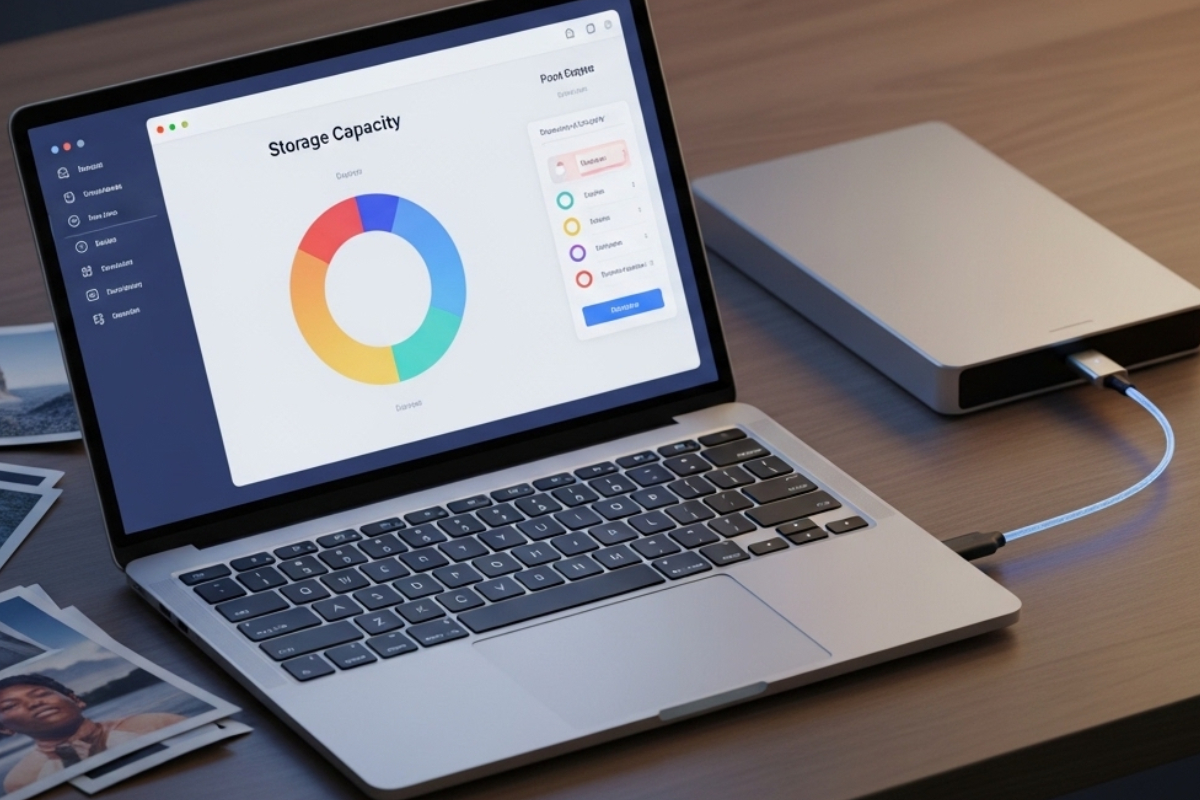
Mac storage issues rarely appear all at once. They creep in quietly. A photo library grows after a holiday. Backups duplicate across drives. System files swell after updates. One day, macOS throws a warning, and everything feels tight. Planning storage early keeps your Mac calm and predictable instead of reactive.
The simplest way to bring clarity is by sizing what you already have and what is coming next. A computer storage calculator helps turn folders, libraries, and backups into clear numbers. You stop guessing. You start planning with confidence.
Why does Mac storage fill faster than expected
Macs are efficient, but modern usage patterns are heavy. Photos are sharper. Videos are larger. Apps cache more data to feel faster. Backups store versions, not just copies. Each category feels harmless alone. Together, they add up quickly.
Photos are often the largest silent contributor. A single iPhone photo may seem small, yet thousands of them stack fast. Live Photos double in size quietly. Short videos recorded in high resolution can outweigh entire music libraries. Many users never revisit older images, but they stay on disk year after year.
Backups amplify this effect. Time Machine saves snapshots over time. That is useful, but it means growth is expected. External drives fill. Network backups swell. Local snapshots sit on internal storage without clear visibility. Storage pressure often starts here.
Seeing your data clearly before planning changes
Before deleting anything, you need a clear picture. Storage planning starts with observation. macOS provides summaries, but they hide details. Digging into folders shows patterns you may not expect.
Development tools are a good example. Xcode caches, simulators, and archives grow steadily. If you work on macOS apps, this can rival photo libraries. Many developers notice this only after reading about performance bottlenecks that tie back to disk pressure.
User libraries tell another story. Music downloads linger. Podcasts stay cached. Old installers sit untouched. Each item feels minor. Together, they push your Mac toward limits that slow everything.
Planning photos with intention instead of reaction
Photos deserve special attention because they grow emotionally and technically. People rarely delete memories, but not every file needs to live locally forever. Planning separates access from storage.
Start by identifying how much space photos consume today. Then project growth. Think in years, not months. Family albums grow steadily. Work-related images may spike during projects. Travel seasons bring bursts of data.
Compression formats matter here. HEIC files are smaller than JPEG, but conversions add copies. Editing workflows often duplicate originals. Understanding formats helps avoid accidental bloat. Many developers notice this when comparing image formats across tools and pipelines.
Backup growth is normal, but it still needs limits
Backups feel invisible until they fail. Time Machine works quietly, but its behavior follows clear rules. It keeps hourly, daily, and weekly versions. That structure explains growth patterns.
Local snapshots are often overlooked. macOS stores them when backup disks are unavailable. These snapshots consume internal storage. They protect data, but they also add pressure during heavy disk use.
External backups need headroom. A good rule is to plan at least double the size of your active data. That buffer allows versioning without constant pruning. Without it, backups churn and lose older history sooner than expected.
Transfer time matters when storage grows
Storage planning is not only about capacity. Speed shapes experience. Moving photo libraries or backups takes time. Slow transfers discourage good habits. People delay cleaning because it feels tedious.
When planning migrations, knowing how long moves will take reduces friction. A transfer speed calculator turns file sizes and connection types into realistic time estimates. You plan moves around your schedule instead of guessing.
This matters when upgrading drives or reorganizing archives. A few terabytes over a slow connection can take hours. Knowing that upfront helps avoid frustration and half-finished jobs.
- Separate working data from archives. Keep current projects local. Move older material to external or cloud storage. This keeps daily performance smooth.
- Plan backups with growth in mind. Choose drives larger than your current needs. Avoid matching sizes exactly. Headroom is safety.
- Review storage quarterly. Short reviews prevent big cleanups. They also help you notice trends before space runs out.
How developers feel storage pressure differently
Developers experience storage issues faster than many users. Toolchains are heavy. Build artifacts multiply. Logs and caches grow silently. This pressure affects compile times and indexing.
App bundles grow as features expand. Test data accumulates. Even symbols and crash logs take space. Over time, disk pressure shows up as slow builds and laggy tools.
Keeping storage healthy supports smoother workflows. Many optimization guides point back to disk usage, such as reducing overhead described in bundle size strategies.
Table of common storage consumers on Mac
| Category | Typical Growth | Planning Tip |
|---|---|---|
| Photos Library | Steady yearly increase | Archive older albums externally |
| Time Machine | Accelerates over time | Use drives twice the active data size |
| Developer Tools | Spikes with projects | Clear caches between cycles |
| Media Downloads | Slow but constant | Remove consumed content |
Small habits that protect long-term storage
Storage health improves with small routines. Emptying trash regularly helps. Clearing downloads after installs helps. Reviewing backups once in a while helps. These habits are boring but effective.
Automation helps here. Scheduled cleanups remove friction. External drives with clear labels reduce confusion. Consistency matters more than intensity.
- Archive photos yearly
- Review backups every quarter
- Clear caches after major updates
- Check free space monthly
Styled summary
Storage planning at a glance
Mac storage stays healthy when photos, backups, and tools are planned together. Clear sizing removes stress. Growth becomes predictable instead of surprising.
A calm Mac starts with foresight
Storage pressure changes how a Mac feels. Apps stall. Backups fail. Updates hesitate. None of this happens overnight. It builds through small, ignored growth.
Planning restores calm. When you know where space goes and how fast it grows, decisions feel easy. You delete with confidence. You upgrade with purpose. You move data without anxiety.
Clear numbers and simple habits protect your Mac long term. That stability supports creative work, development, and everyday use without constant warnings.
For deeper system-level guidance on storage behavior, Apple outlines file system concepts through the Apple File Provider framework, which explains how macOS manages files across locations.