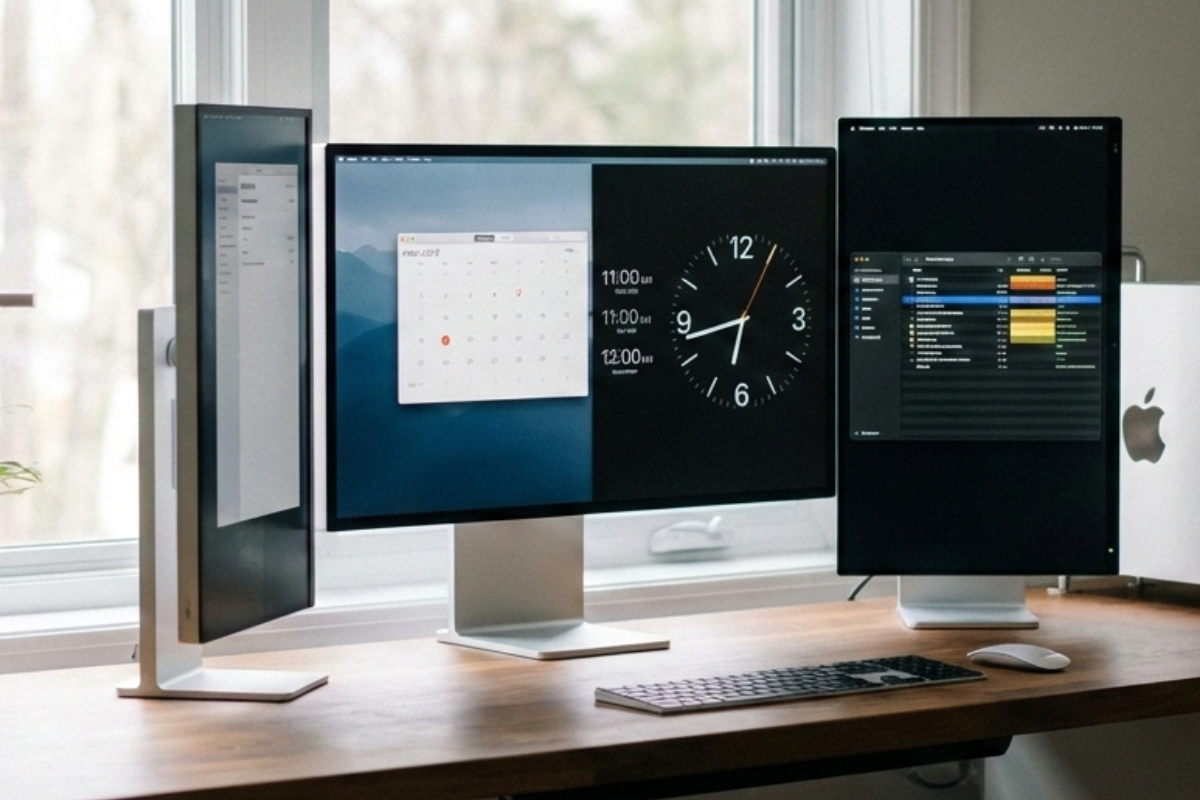
A workspace feels different when time is visible. Not loud. Not demanding. Just present. On a Mac with multiple screens, a full-screen clock changes how the day flows. It reduces mental clutter. It softens transitions between tasks. It helps work feel grounded instead of rushed.
Many Mac users start with a clean, full-screen clock placed on a secondary display. Once it fills the screen, it becomes part of the environment. No clicking. No checking menus. Time stays in view while your hands stay on the keyboard.
This guide walks through setting up a full-screen clock on a Mac multiscreen setup. It covers layout ideas, clock styles, visual comfort, and small habits that support better focus. Everything here is practical. Nothing is forced.
Gentle Overview
A full-screen clock on a Mac multiscreen setup supports focus, pacing, and calmer workdays. This article explains how to install one, where to place it, and how different clock styles affect attention.
How Time Visibility Shapes Multiscreen Work
Multiple displays expand space. They also expand distraction. Each screen competes for attention. Time often disappears in the process.
A full-screen clock restores balance. It does not interrupt tasks. It simply reminds you where you are in the day. That awareness reduces stress more than strict schedules ever could.
Instead of rushing or guessing, you begin to feel time pass. Meetings start on time. Breaks stop feeling optional.
Understanding Mac Display Behavior Before Setup
macOS treats each monitor as an independent workspace. Fullscreen apps stay contained on one display. This makes it ideal for dedicating a screen to time.
Before setting anything up, open System Settings and review your display arrangement. Position your secondary screen where your eyes naturally drift. A clock works best when it lives just outside your main focus.
Many people place the clock on a vertical monitor or a side display angled slightly away from the center. Comfort matters more than symmetry.
Choosing the Right Clock Style for Long Sessions
Not every clock feels the same. Some add pressure. Others calm the room.
Digital clocks show precision. Analog styles feel softer. Text-based clocks feel human. The right choice depends on how your brain responds to visual cues.
Remote work adds another layer. Coordinating with teammates across regions requires awareness beyond local time. Keeping an eye on world time zones helps prevent late messages and missed calls.
Setting Up a Fullscreen Clock Using a Browser
The simplest setup uses a browser you already trust. Safari, Chrome, and Firefox all handle full-screen clocks well.
- Open the clock in a new browser window.
- Drag the window to your secondary display.
- Click the green window button to enter full screen.
- Hide browser toolbars if they remain visible.
Once full screen, the clock becomes a fixed reference point. It stays visible through app switching and virtual desktops.
Planning sessions benefit from clarity around duration. A quick time calculator helps estimate how long tasks will take without pulling you away from work.
Widget-Based Clocks for Flexible Layouts
Fullscreen is powerful, but not always necessary. Some setups benefit from lighter elements.
A floating clock widget fits well on smaller displays or shared screens. It keeps time visible while leaving room for reference material.
If readability matters from across the room, a bold digital clock widget offers clear contrast and large numerals that remain legible at a glance.
Exploring Softer Clock Expressions
Visual tone influences mood. A clock does not need to feel mechanical.
A text-based clock spells out time in words. It slows perception slightly and reduces urgency. Many writers and designers prefer this approach.
Creative spaces sometimes benefit from personality. A word clock adds character without overwhelming the workspace.
Practical Multiscreen Clock Tips
- Place the clock on a display that sits just outside your main focus.
- Use high-contrast colors for quick recognition.
- Lower brightness on the clock screen during evening hours.
- Disable seconds if they increase tension.
- Match clock size to viewing distance.
Time Awareness and Energy Management
Seeing time pass changes behavior. It supports pacing without enforcement.
Many people follow simple rhythms.
1. Focus deeply for a set window.
2. Pause briefly.
3. Reset attention before continuing.
A full-screen clock supports this flow quietly. It never interrupts. It simply tells the truth.
Clock Style Comparison Table
| Clock Style | Best Use | Visual Tone |
|---|---|---|
| Digital | Fast-paced tasks | Clear and precise |
| Text | Deep focus | Soft and calm |
| Word | Creative work | Expressive |
Real Experiences from Mac Users
“Having a full-screen clock on my side monitor changed how I pace my day. Meetings feel less abrupt.”
“I stop checking my phone now. Time is just there, always visible.”
Common Pitfalls That Reduce Comfort
A clock can become stressful if configured poorly.
Avoid extreme brightness. Avoid flashing elements. Avoid placing the clock behind active windows.
The goal is presence, not pressure.
Letting the Setup Evolve Naturally
Needs change. Some weeks require strict pacing. Others need breathing room.
Browser-based clocks allow quick changes. Switch styles. Adjust size. Move displays. Nothing breaks.
This flexibility keeps the system useful long-term.
A Closing Note on Time and Attention
A Mac multiscreen setup offers power. A full-screen clock brings balance. It grounds the day without controlling it. With thoughtful placement and a style that feels right, time becomes a quiet partner rather than a source of stress.